

Social Media Strategy for B2B Companies: How to Build One That Actually Drives Leads
Modern marketing is spread across more channels than ever. Email, social, paid ads, landing pages, blogs, events, and even offline promotions all contribute to the customer journey. Without a unified system, it becomes nearly impossible to understand what is working and what is wasting budget. This is where the HubSpot Marketing Hub shines. Its campaign tools give you a clear, organized way to track every marketing campaign and measure real content marketing ROI.
This guide breaks down what a campaign means inside HubSpot, what you can attach to it, how to interpret the numbers, and how to set everything up correctly.
What a Marketing Campaign Means in HubSpot
In HubSpot, a marketing campaign, found under the Marketing Studio tab, is a centralized container that groups together all assets, activities, and touchpoints that support a shared goal or initiative. It is not just an email blast or a single landing page. It is the full ecosystem of content and interactions that work together to drive awareness, engagement, leads, and revenue.
You can use campaigns for product launches, seasonal promotions, webinars, nurture sequences, brand pushes, or any initiative that spans multiple channels.
A campaign in the HubSpot Marketing Hub gives you a single place to see performance, attribution, and engagement across everything you publish.
What You Can Link to a HubSpot Campaign
HubSpot allows you to associate a wide range of assets and activities with a campaign. This is what makes it one of the most powerful marketing analytics tools available to growing teams.
Content and Digital Assets
-
Landing/Website pages*
-
Blog posts*
-
Calls to action
-
Forms
-
Social posts*
-
Paid ads (Google, Facebook, LinkedIn)
-
Manual and Automated Marketing Emails
-
SMS
-
Knowledge Base Articles
-
Case Studies
-
Podcase Episodes
-
Workflows
-
Feedback Surveys
-
Static and active lists
-
Tracking URLs
-
Media files used in campaign assets
-
Videos
*Works for items posted on HubSpot or externally
Sales and CRM Touchpoints
-
Calls
-
Meetings
Offline or External Activities
-
Documents/Files/Playbooks
-
Marketing Events - Webinars/Trade shows
-
Print campaigns using QR codes
-
Any external channel using a tracking URL
When all of these elements are connected, you get a complete picture of how your marketing campaign performs across the entire buyer journey.
Why Tracking Campaigns as a Whole Matters
Unified Visibility
Instead of jumping between emails, ads, pages, and workflows, you can see everything in one place. This makes it easier to understand how each channel contributes to the overall initiative.
Better Attribution
Campaign tracking connects contacts, deals, and revenue back to the marketing campaign that influenced them. This helps you understand which initiatives actually drive pipeline and which ones only generate surface-level engagement.
Smarter Budget Decisions
When you can compare campaigns side by side, you can confidently invest in what works and cut what does not. This is essential for improving content marketing ROI.
Stronger Alignment Across Teams
Sales, marketing, and leadership can all reference the same source of truth. This reduces guesswork and helps everyone understand the impact of your marketing efforts.
How to Interpret HubSpot Campaign Metrics
HubSpot provides several key metrics that help you understand the performance of your marketing campaign. Some of these numbers are straightforward. Others require context to interpret correctly.
Influenced Contacts
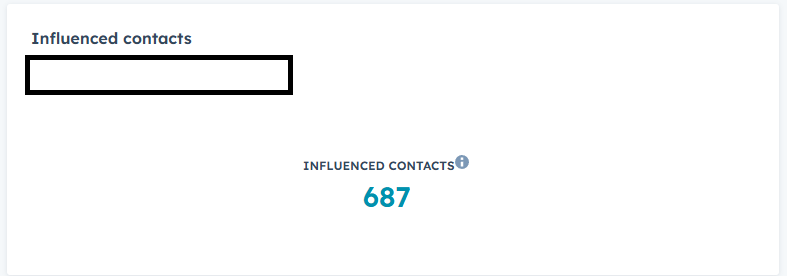
Influenced contacts are people who interacted with any asset associated with your campaign. This includes email opens, clicks, form submissions, page views, ad interactions, and workflow enrollments.
Important note: influenced does not mean sourced. It simply means the contact touched something connected to the campaign.
Influenced Deals
These are deals where at least one associated contact interacted with a campaign asset. This metric helps you understand pipeline impact, not just lead generation.
New Contacts
These are contacts created during the campaign period who came from a campaign asset. This is your true sourcing metric.
Revenue Attribution
HubSpot uses attribution models to assign revenue to campaigns based on deal associations and contact interactions. This helps you understand which campaigns contribute to closed revenue.
Limitations to Keep in Mind
Influenced Metrics Can Mislead
Influenced contacts can stack up quickly. A single person might touch multiple assets across multiple campaigns, inflating the numbers in ways that don’t always reflect meaningful engagement. At the same time, HubSpot can miss some real interactions from people who block cookies, use privacy-focused browsers, or filter tracking pixels in email. The result is a metric that can both over‑represent low‑value touches and under‑represent real activity happening behind privacy walls.
Attribution Depends on Proper Setup
If you forget to associate assets, they will not count toward the campaign. If you skip tracking URLs, external channels will not be captured.
Offline Activities Require Manual Work
Events, print campaigns, and partner promotions need tracking URLs or manual association to show up in reporting.
Attribution Models Are Helpful but Not Perfect
Complex buyer journeys can still create gaps in reporting. Use attribution as a guide, not an absolute truth.
How to Create a Campaign in HubSpot
Here is a quick walkthrough for setting up a marketing campaign inside the HubSpot Marketing Hub.
Step 1: Go to Marketing, then Marketing Studio
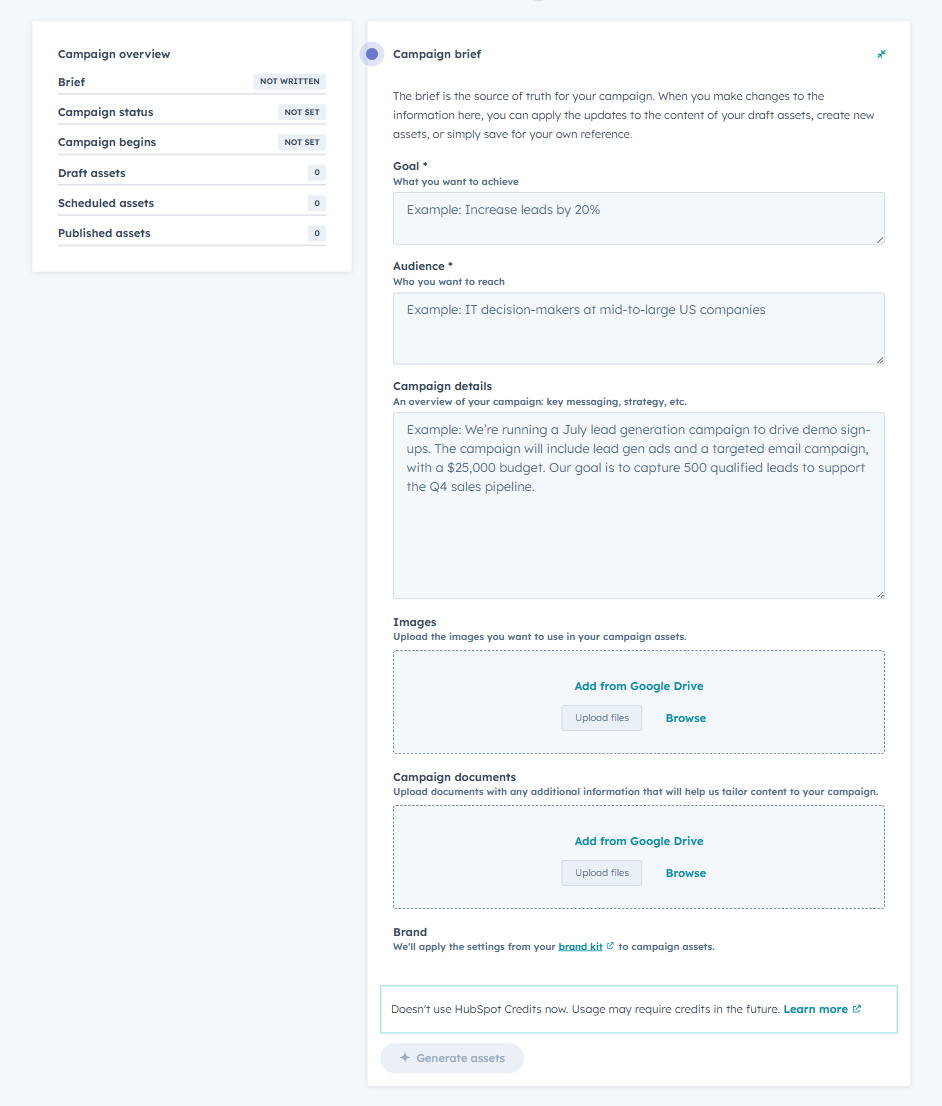
Select the "Manage" tab to see all campaigns already created. Select the "Create Campaign" button in the top right to start a new campaign.
Step 2: Add Basic Details
Include:
-
Campaign Name
-
Goal
-
Audience
-
Campaign Details
-
Images
-
Documents
-
Brand Kit
Step 3: Attach Assets
You can attach assets in two ways.
-
Option A: From the Campaign Editor
-
Click the orange "Add Assets" button and select emails, pages, ads, social posts, workflows, and more. *If your website is not hosted on HubSpot, you can add landing pages and website pages by selecting "external website pages" in the left-hand column and then selecting the"add external website page" button, where you can paste applicable URLs.
-
-
Option B: From the Asset Itself
-
Open the email, page (if hosted on HubSpot), ad, workflow, etc
-
Find the Campaign dropdown field.
-
Select the campaign you want to associate it with.
-
Step 4: Add Tracking URLs
Use tracking URLs for:
-
Social posts published outside HubSpot
-
Offline promotions
-
QR codes
-
Partner campaigns
Step 5: Review Performance
Use the campaign dashboard to monitor:
-
New contacts
-
Influenced contacts
-
Influenced deals
-
Revenue
-
Asset level performance
Below are some examples of analytics HubSpot creates with the attached assets.

The Power of Tracking Your Marketing Campaigns in HubSpot
Tracking your marketing campaigns inside the HubSpot Marketing Hub gives you a clear, data-backed view of what is working across every channel. When you associate all assets correctly, you unlock powerful insights that help you improve content marketing ROI, make smarter budget decisions, and align your team around the metrics that matter.